Request a Quote: Call 781-890-3111

How to Choose Rugged Computer Systems for Your Business

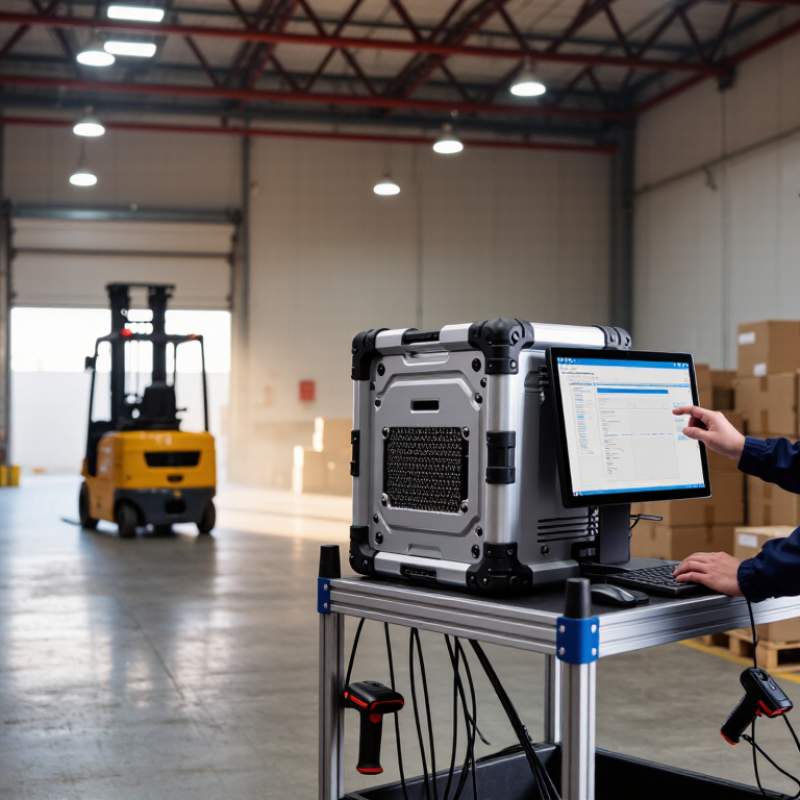
A forklift rolls across a warehouse floor as dust settles near the loading bay. Nearby, a technician checks inventory on a computer exposed to vibration, temperature swings, and frequent handling. A standard office PC may struggle in that setting. Rugged computer systems are designed for demanding environments, but “rugged” alone does not guarantee a good fit. The right choice depends on where the device will operate, what software it must run, and how quickly staff can get it repaired.

The financial stakes can be significant. Siemens’ 2024 True Cost of Downtime report, based on 500 large companies across eight industries, estimated that unplanned downtime costs those companies about $1.4 trillion annually, or roughly 11% of their revenue. That estimate is not a promise of savings from rugged hardware; it does show why reliability deserves careful attention. IDC’s Worldwide Edge Spending Guide projected global edge-computing spending at $232 billion in 2024, reflecting growing investment in computing closer to operational sites. For buyers, this makes practical questions more important: Does the device support required ports and connectivity? Can it handle the site’s temperature range, dust, shocks, and vibration? Is the display readable in sunlight, and can staff replace batteries without interrupting a shift? Check ratings, test procedures, warranty terms, and service availability against your actual conditions. A specification sheet is only a starting point; real work sites can be messier. This guide outlines how to compare options, weigh lifecycle costs, and choose equipment that fits the job—not just the brochure.
How to Choose Rugged Computer Systems for Your Business

Define the Business Tasks and Operating Conditions

Before comparing rugged computer systems, observe how staff work during a typical shift. A warehouse operator may scan labels with gloves on, while a field technician may need readable maps under direct sunlight. List the applications, screen size, ports, mounting points, and battery life each task requires. Small details matter. A screen that responds poorly to wet fingers can slow an entire inspection.

Then describe the operating conditions using real measurements where possible. Note temperature swings, dust, moisture, vibration, and the height or frequency of accidental drops. A device mounted beside a vibrating vehicle engine faces different stresses from one carried between indoor workstations. Check that its environmental ratings match the exposure you expect, but treat ratings as a starting point, not proof of fit. Test a representative unit with your software and accessories in the actual workspace. It is easy to over-specify. I have seen teams focus on drop resistance while overlooking charging access or glare. Those choices may look minor on paper, yet become daily frustrations. Record what fails, even if the answer is inconvenient.

Assess Ruggedness Requirements and Environmental Risks

Before choosing a rugged computer, map the conditions it will actually face. A unit used beside a warehouse loading bay may encounter dust, brief rain, vibration, and sharp temperature changes. Dust gets everywhere. Note where the system will operate, how often it moves, and who will handle it. A fixed control station has different risks from a handheld device on a service vehicle. Record likely exposure, not just worst-case scenarios; overestimating can add cost without improving daily reliability.

Tips: Walk the work area during a busy shift. Check for water spray, loose grit, jolts, glare, and nearby heat sources. Ask operators what fails most often. Their observations may challenge the neat assumptions in an office-based plan.

Match those findings to specific requirements. Review the manufacturer’s ingress-protection rating for dust and water, and verify what the rating covers; it does not guarantee resistance to every cleaning chemical or impact. Check operating-temperature limits, shock and vibration claims, screen readability, and connector protection. If a vehicle carries the computer, test the mounting arrangement on real routes. A short field trial can reveal loose cables or an unreadable display before a larger purchase. No specification sheet captures every worksite quirk, so leave room to reassess after deployment.

How to Choose Rugged Computer Systems for Your Business - Assess Ruggedness Requirements and Environmental Risks
Environmental Risk Assessment Questions Practical Requirement to Consider Evidence to Request Why It Matters
Dust, dirt, and airborne particles Will the computer be used in workshops, warehouses, construction areas, or outdoors? For dusty locations, consider a sealed enclosure with an appropriate dust-ingress rating, such as IP6X where complete dust protection is needed. Published IP test rating for the complete configured unit, including ports and covers. Dust can obstruct cooling paths, contaminate connectors, and damage internal components.
Water, rain, and cleaning Could the system encounter rain, splashes, water jets, or routine washdown? Select a water-ingress rating that matches the actual exposure. IPX5 and IPX6 address water jets under defined test conditions; they do not, by themselves, indicate protection against immersion. Test documentation for the stated IP rating and details of any required port covers or operating conditions. Water resistance depends on the test level and how the computer is installed and used.
Operating and storage temperatures What are the lowest and highest temperatures at the installation point? Will the device be exposed to direct sun or stored in an unheated vehicle? Choose an operating-temperature range that covers measured conditions with a reasonable allowance for local temperature variation. Check storage limits separately. Manufacturer-published operating and storage ranges, plus any limits for battery, display, or peripherals. Temperature extremes can affect startup, battery runtime, display readability, and component life.
Shock, drops, and impacts Could the system be dropped, struck by tools, or jolted during vehicle or equipment movement? Set a realistic drop or impact requirement based on device type, mounting, and handling. Use protective cases or mounts when they are part of the intended configuration. Test method, test conditions, tested configuration, and results for the complete system or specified accessory combination. A durability claim may not apply to every configuration or to impacts beyond the stated test conditions.
Vibration Will the computer be mounted on a vehicle, production equipment, or another vibrating structure? Define the mounting location and vibration profile, then select a system and mount tested for those conditions. Vibration test report identifying the method, frequency range, duration, mounting arrangement, and operating state. Continuous vibration can loosen connectors, damage storage devices, or cause intermittent faults.
Humidity and condensation Will the system move between cold and warm areas, or operate in humid environments? Check the specified operating humidity and whether condensation is permitted. Plan for gradual temperature transitions when condensation is a risk. Environmental specifications and any relevant humidity or condensation test results. Moisture can cause corrosion, electrical leakage, and display fogging.
Salt, chemicals, and corrosive substances Is the system used near coastal air, cleaning chemicals, oils, or industrial agents? Identify the specific substances and exposure frequency. Confirm material compatibility for the enclosure, seals, screen, and connectors. Material compatibility information or test results for the named substances and exposure conditions. An ingress rating does not establish resistance to chemical attack or corrosion.
Sunlight and outdoor visibility Will users read the display outdoors or under strong lighting? Assess display brightness, anti-glare performance, viewing angle, and operating-temperature limits for the intended location. Display specifications and, where possible, an evaluation in representative lighting conditions. A durable enclosure does not guarantee that the screen will remain readable in bright sunlight.
Electrical noise and power variation Will the computer connect to vehicle power, motors, or industrial electrical equipment? Check the input voltage range and protection requirements for the power source. Use an approved power adapter or vehicle power solution suited to the installation. Power-input specifications and test information for relevant electrical disturbances. Power dips, surges, and electrical noise can cause resets or damage if the system is not properly protected.
Overall environmental qualification Are there customer, industry, or site-specific environmental requirements? Match the test plan to actual operating conditions. Treat MIL-STD-810H as a collection of environmental test methods, not a single universal ruggedness rating. Test reports stating the selected methods, procedures, severity levels, configuration, and pass criteria. Test results are meaningful only when the tested conditions represent the intended use.

Selection note: Use measured site conditions and the complete installed configuration when comparing systems. IP ratings, environmental test methods, and operating specifications describe different aspects of ruggedness and should not be treated as interchangeable.

Compare Performance, Connectivity, and Compatibility

How to Choose Rugged Computer Systems for Your Business

Compare performance under the workload the computer will actually face. A warehouse dashboard may need less processing power than a system analyzing camera feeds or running design software. Check memory, storage speed, and sustained performance, not just peak processor numbers. Heat can slow a unit during long shifts, so test it in its intended enclosure and operating environment. Test the real workload.

Connectivity affects daily reliability. List the ports your equipment requires, such as Ethernet, USB, serial connections, or video output. Then check wireless coverage where the computer will be used; a strong signal in the office may fade behind metal shelving. Confirm antenna options, docking needs, and whether cables can be secured against vibration. Extra ports sound useful, but unused openings can complicate sealing and maintenance.

Compatibility is often where a promising choice becomes inconvenient. Verify that the operating system supports your essential software, drivers, scanners, printers, and other peripherals. Check mounting dimensions and power requirements too, especially when replacing an older unit in a vehicle or control cabinet. Ask vendors for documented compatibility details and run a pilot with real users. I have seen teams focus on ruggedness and overlook a legacy peripheral; replacing it later was harder than expected. That is worth checking early.

Verify Certifications, Security, and Serviceability

Before buying a rugged computer, match its certifications to the conditions it will actually face. A dust-resistant rating does not automatically mean the unit can withstand drops, vibration, or water exposure. Ask for test reports tied to the exact model and configuration, not just a product-family brochure. Paperwork can mislead. Check the testing method, date, and limits, especially if the computer will operate near washdown areas, vehicle mounts, or wide temperature swings. A rating is useful evidence, but it cannot predict every field failure.

Security needs the same careful verification. Look for secure boot, hardware-based protection for encryption keys, and a clear process for firmware and operating-system updates. Confirm how long updates are supported and whether administrators can disable unused ports or restrict local access. These details matter when devices are shared across shifts or leave a controlled office. Ask who handles vulnerability notices and how quickly fixes are typically released. Promises are easy; written support terms are better.

Serviceability can decide whether a small fault becomes a costly interruption. Check whether batteries, storage, keyboards, and screens can be replaced without specialized equipment. Request repair instructions, spare-part availability, and typical turnaround times for both depot and field service. If possible, have staff swap a battery or clean the device during a trial. It may feel like a minor test. It often reveals awkward latches, fragile covers, or unclear procedures before the computers reach a busy site.

Evaluate Total Cost, Support, and System Longevity

A rugged computer’s purchase price is only the visible part of its cost. Track batteries, docks, mounting hardware, deployment, repairs, and staff time across its expected service life. The U.S. Department of Energy’s life-cycle cost guidance recommends comparing acquisition, operating, maintenance, and disposal costs. That framework suits field equipment. A low quote can age badly.

Estimate the cost of a failed shift: technicians waiting beside a vehicle, missed inspections, and replacement units shipped overnight. Uptime Institute’s 2024 outage analysis found that 54% of surveyed organizations said their most recent significant outage cost more than $100,000. This is data-center outage data, not device-specific, but it illustrates how interruptions can become expensive. Ask suppliers to document repair turnaround, parts availability, replacement options, and escalation coverage. Test support before purchase. Submit a real configuration question and assess the response, not just the promise.

Longevity depends on more than a sealed case. Check temperature limits, ingress protection, vibration testing, battery replaceability, operating-system support, and spare-part availability. Match the expected device lifespan to your refresh cycle, not merely its warranty. No spreadsheet captures every muddy glove or awkward mounting bracket; pilot units in real working conditions can reveal those gaps. I would still leave room for surprises.